Need to share a PDF without email attachments, permission popups, or messy links? If you want a fast, clean URL that opens a modern PDF viewer on any device, FileXhost gives you a shareable link in seconds.
This guide shows the simplest way to turn any PDF into a link you can drop into emails, chats, resumes, portfolios, or support docs.
Quick Answer
- Upload your PDF to FileXhost.
- Copy the provided link (it lives on a
filex.hostsubdomain). - Share it anywhere—no extra setup, no logins for viewers.
The link opens a fast, mobile‑friendly viewer so people can read or download your document immediately.
Start Hosting for Free
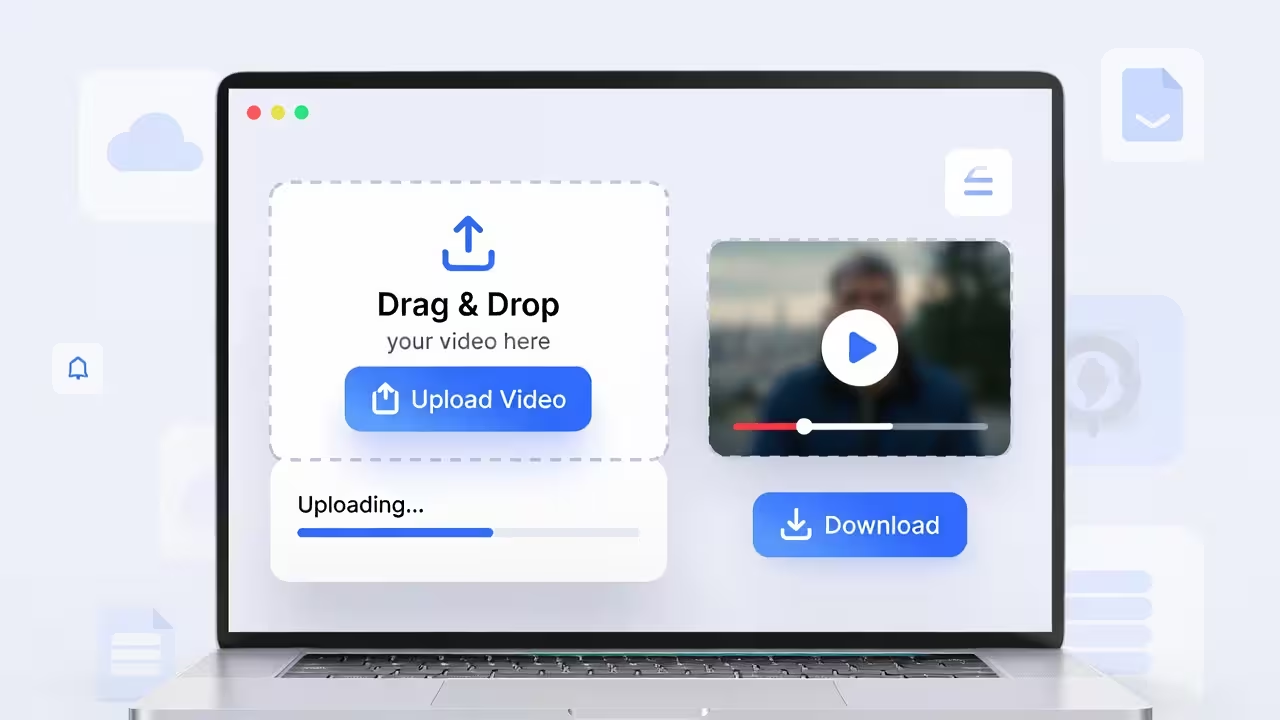
Drag and drop any file (images, videos, PDFs, or HTML) and get a live link in seconds. No sign-up required.
Why Use a Link Instead of an Attachment
- Instant access: Recipients open the link without downloading an email attachment first.
- No permissions friction: Avoid “request access” screens and organization‑locked files.
- Mobile‑friendly: A modern viewer with page navigation and zoom options.
- Consistent URL: A stable, copy‑pasteable link you can reuse anywhere.
- Better UX: People can preview before deciding to download.
How FileXhost Links Work
FileXhost focuses on fast file hosting and previewing. When you upload a PDF:
- You get a shareable link on a
filex.hostsubdomain. - The link opens a dedicated PDF viewer page that renders quickly.
- Viewers can read online or download the file.
You do not need to set up servers, domains, or permissions. Copy the link and share it immediately.
Step‑by‑Step: Share a PDF as a Link
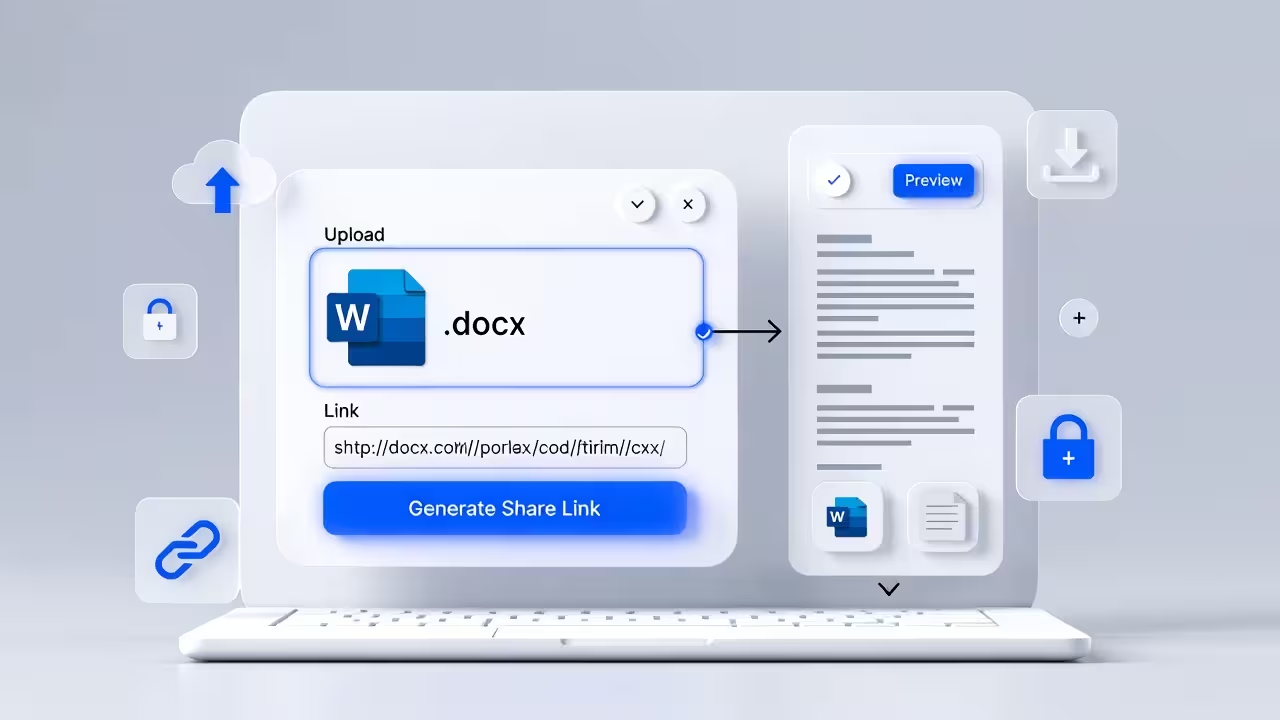
- Open FileXhost and upload your
.pdf. - Wait a moment for processing.
- Copy the share link. It looks like
https://yourname.filex.hostor a similar subdomain. - Paste that link into email, Slack/Discord, LinkedIn, or your site.
That’s it. Your recipients can view the document right away.
Tips for a Great Viewing Experience
- Use clear filenames: e.g.,
pricing-2026.pdf,resume-shubham-soni.pdf. - Keep size reasonable: Under ~10–20 MB loads faster on mobile networks.
- Export text‑based PDFs: Avoid image‑only scans; text PDFs are clearer and searchable.
- Embed fonts on export: Prevent missing font issues for recipients.
- Set a title/subject in your PDF metadata if your editor supports it—helps when saved.
Direct Download vs. Viewer Link
- The default link opens a viewer page where users can read and then download.
- If you want to share a direct download style experience, simply instruct recipients to use the download button in the viewer.
Both approaches keep things simple and reliable for recipients on any device.
Where to Share Your Link
- Email: Replace attachments with a short line—“View the PDF: https://…”.
- Chat apps: Slack, WhatsApp, Telegram, Discord.
- Social & profiles: LinkedIn, personal portfolios, resumes.
- Support & docs: Embed or link from knowledge bases, issue trackers, or FAQs.
When embedding in a website or CMS, link directly to your FileXhost URL:
<a href="https://project.filex.host" target="_blank" rel="noopener">
  View the PDF
</a>
Google Drive/Dropbox vs. FileXhost
Traditional cloud drives are great for storage, but when you only need a clean, public link:
- Drive/Dropbox links may involve permissions or preview quirks.
- Organization policies can block external viewers.
- URLs are often long and hard to read.
FileXhost provides a straightforward, public‑facing link that opens fast and just works—ideal for resumes, proposals, handouts, and marketing PDFs.
Troubleshooting
- The PDF looks blurry: Re‑export at higher DPI or as text‑based PDF (not a raster image).
- File is too big: Compress on export, remove unused images, or use a lighter font.
- Recipients can’t open: Ask them to try the latest Chrome/Firefox/Safari, or resend the link to rule out copy/paste issues.
- Interactive forms: Basic form fields display; advanced scripting may not behave like Acrobat. For best results, flatten interactive features before sharing.
Frequently Asked Questions
Can I share multiple PDFs in one link?
Each upload generates a specific link. If you have several documents, upload each and share individual links, or create a simple HTML page that links to multiple PDFs and host that single HTML file.
Do I need a custom domain?
No. Links live on a filex.host subdomain so you can share immediately.
Will people be asked to log in?
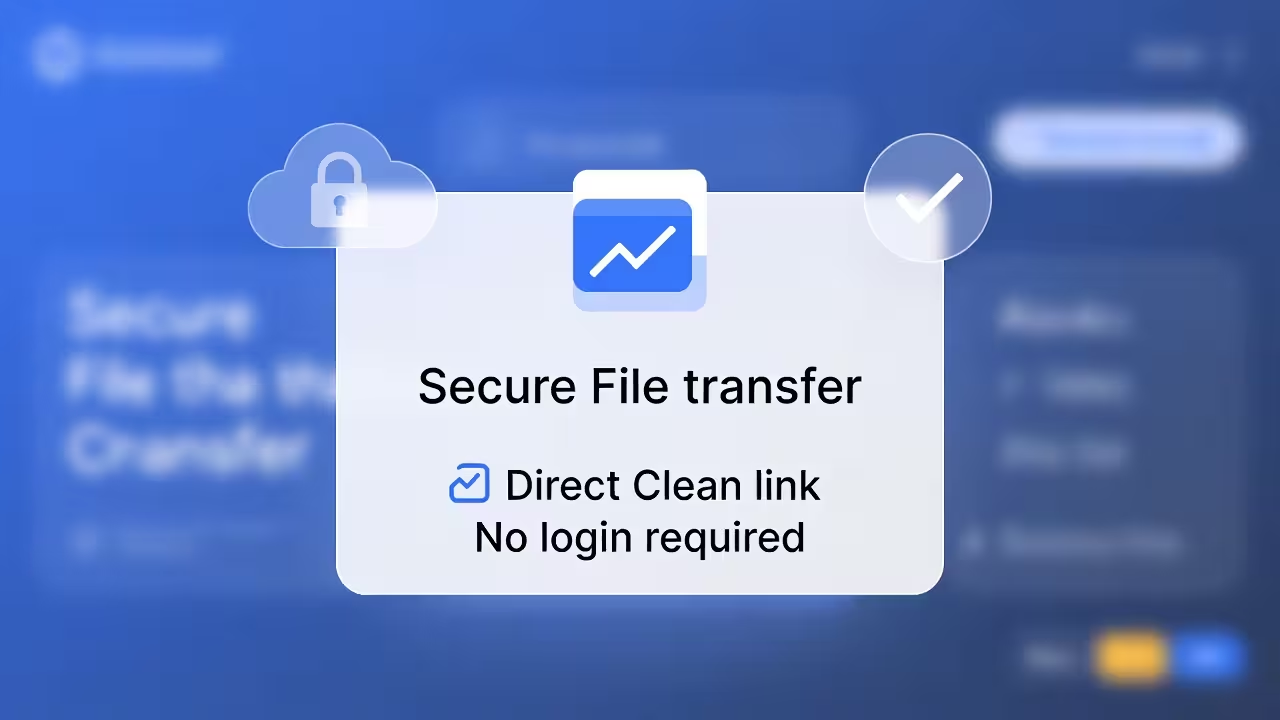
No. FileXhost is designed for frictionless viewing and sharing.
Is the link SEO‑friendly?
The link is clean and works well for posting on websites and profiles. For full SEO control over content, consider summarizing your PDF on a web page and linking to the hosted PDF.
Can viewers download the file?
Yes. The viewer includes a download control so recipients can save the file locally.
Wrap‑Up
Turning a PDF into a link shouldn’t be complicated. With FileXhost, you upload once, copy a clean URL, and share it anywhere. It’s fast, readable on any device, and free to start—perfect for resumes, brochures, ebooks, one‑pagers, and handouts.